 Stripio
 / AI image metadata remover
Remove metadata from AI images
This AI image metadata remover works inside this browser tab, and the image is never uploaded. Drop a PNG, JPEG or WebP from an AI generator to see the prompt, seed and settings saved inside it, then remove them without touching the pixels.
iPhone photo saved as HEIC? Share it with Options set to Most Compatible, or open Settings, Camera, Formats and choose Most Compatible, then drop the JPEG copy here.
The free plan holds 3 files at a time. Pro holds 50. See what Pro adds
Files are read and rewritten in this browser tab. They are never uploaded.
Example report. Yours appears here, listed field by field before anything is removed.
- GPSLatitude48.858400°
- GPSLongitude2.294500°
- MakeExample Phone Co.
- DateTimeOriginal2026:05:14 09:30:00
- MakerNote(1.4 KB)
- digitalSourceTypetrainedAlgorithmicMedia
- c2pa.claim
What an AI generator saves inside an image
An AI generator writes hidden notes into the file that say how the image was made. There are three kinds, and one image can carry all of them.
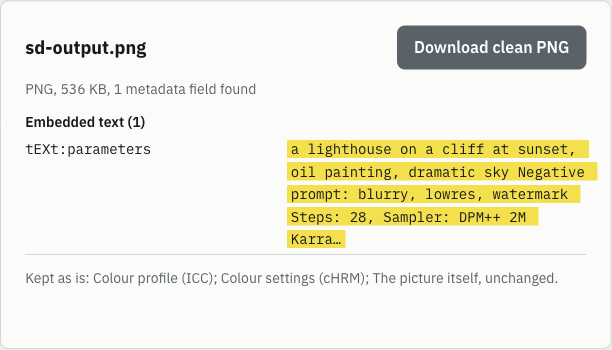
- The prompt and settings. Stable Diffusion apps save the prompt, seed and model name as a text note called
parameters. ComfyUI saves two,promptandworkflow, which hold the whole setup used to make the image. - An "AI-made" tag. A standard field called
DigitalSourceTypeset totrainedAlgorithmicMedia. It is the usual machine-readable way of saying "a generative model made this". The tool's name often sits next to it inCreatorTool. - A content credential (C2PA). A signed record naming the generator and what it did. Image tools from OpenAI and Adobe attach one to the images they produce.
Stable Diffusion and ComfyUI metadata
These two are the usual source of a saved prompt. Stable Diffusion apps write one PNG text note, parameters, with the prompt, the negative prompt, the seed, the sampler and the model name. ComfyUI writes prompt and workflow. Anyone who gets the file can read them, and none of it shows when you open the image. The report lists each note by name, and all of them are removed in the same pass.
How to remove the prompt and AI tags
- Drop the image on the tool above. Nothing is sent anywhere.
- Read the report. It lists each hidden field, grouped by kind.
- Press the remove button. Each value is blacked out as its field is deleted.
- Download the clean file. The page checks it again and shows how many fields are left.
The clean image is the original with the notes left out. The picture is not redrawn or compressed again, so a PNG stays pixel-perfect and a JPEG keeps exactly the quality it had.
What stays in the image
The colour profile stays, because removing it changes how colours look. Transparency and animation frames stay too.
Photos from a phone or camera carry your location and camera details next to any AI notes. To remove AI metadata from a photo, use the main tool, which covers those in detail, and the AI metadata detector is the page to use when you only want to look.
Related tools
- Remove AI metadata from a photoThe main tool. Location, camera and AI fields in JPEG, PNG and WebP photos and images.
- Remove metadata from a videoLocation, device and AI notes in MP4 and MOV clips, erased with no re-encode.
- Remove AI labelThe hidden notes that make apps show "Made with AI", and what deleting them changes.
- Remove C2PA metadataWhat a content credential declares, and how to delete it.
- AI metadata detectorList every field in a file without changing anything.
Questions about AI image metadata
- Where do AI image generators store metadata?
- In small blocks of notes stored next to the picture inside the file. PNG files keep them as text notes, and JPEG and WebP files keep them in metadata blocks. You never see them when you open the image.
- Does this remove the prompt from a Stable Diffusion or ComfyUI PNG?
- Yes. Those tools save the prompt, seed and settings as text notes named parameters, prompt or workflow. The report shows each note by name and removes all of them.
- Does it remove an invisible watermark such as SynthID?
- No. An invisible watermark is part of the pixel values, not metadata. Removing it would mean altering the picture, which this tool never does.
- Will the image lose quality or transparency?
- No. The picture, its transparency and its colour profile are copied across unchanged. Only the hidden notes are left out of the new file.
- Can I clean several images at once?
- Yes, three at a time and up to 20 MB each. Each image gets its own report and its own download.
- Is the original file modified?
- No. The browser cannot write to your original. You download a new file with "-clean" added to its name.